Nodding along
Your partner talks at length. You catch most of it and nod, because asking again in front of the room feels awkward. Later you find out you got it wrong.
Meeting translation app for iPhone and Android
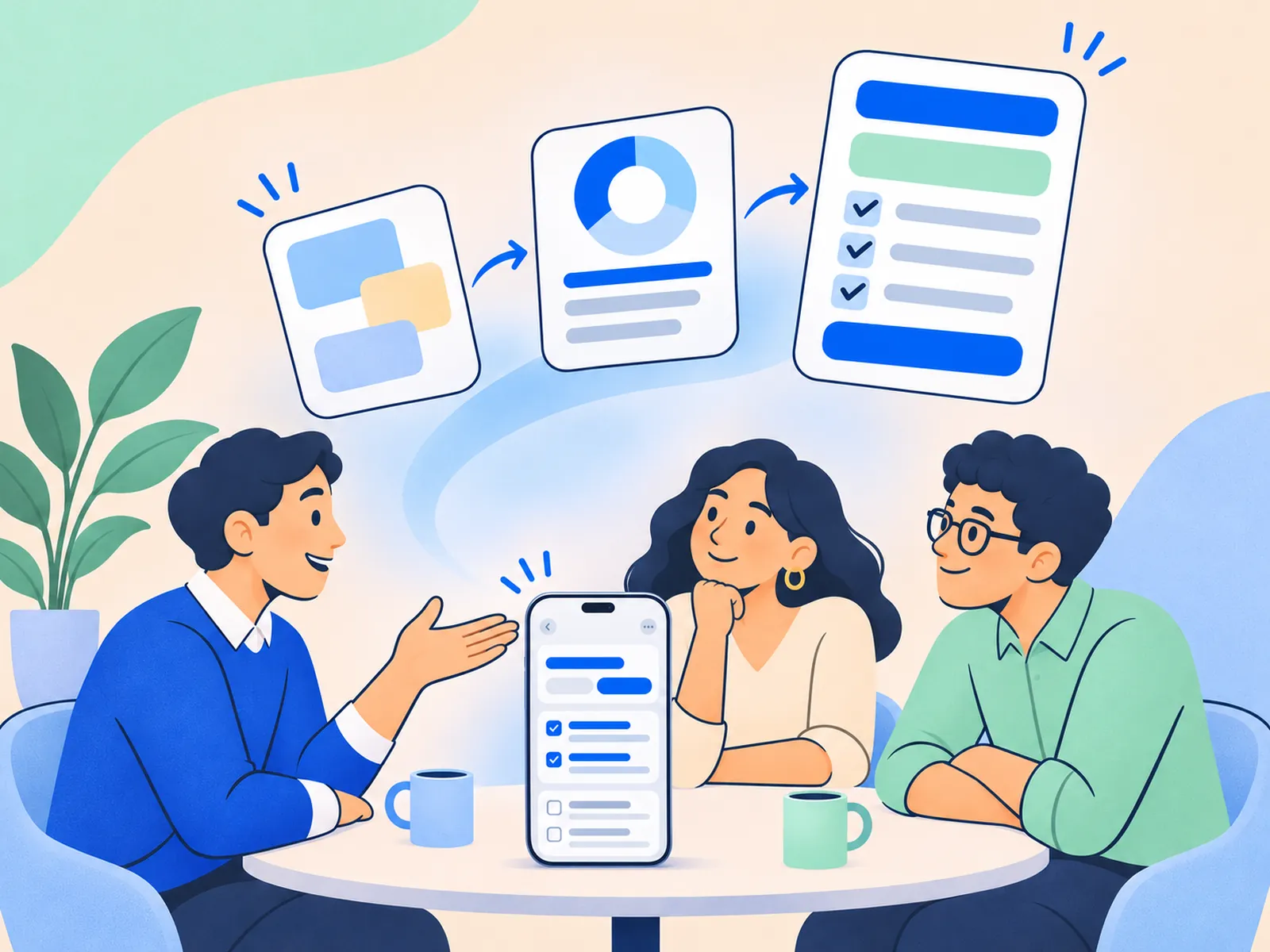
When your partner speaks another language, each sentence appears with its translation underneath. You speak yours, they read theirs. Tap Stop, and AI writes meeting minutes with the decisions and action items.
At the meeting table
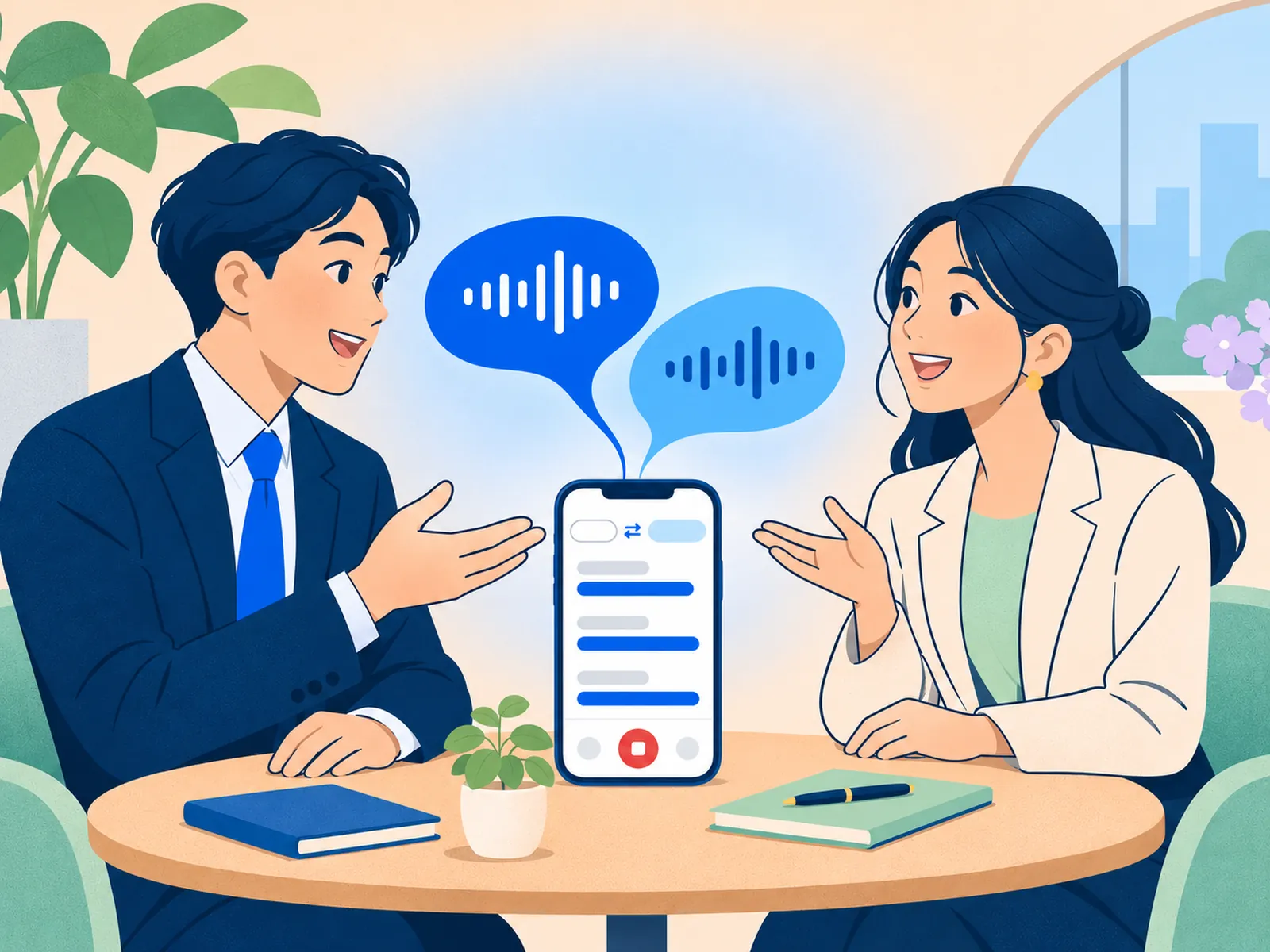
Meetings slow down when no one is sure the message landed.
Your partner talks at length. You catch most of it and nod, because asking again in front of the room feels awkward. Later you find out you got it wrong.
In some business cultures, it is a polite refusal. Read it as a yes, and you plan around something that won't happen. Subtitles show the original line next to the translation, so the team can check exactly what was said.
A tolerance figure goes from you to a colleague, to a manager, to the client. By the end of the meeting, the whiteboard no longer matches the drawing.
The visitor is already standing at the production line and asking questions. No one is there to translate, and everyone looks at each other.
How it works
Open the app before the meeting. The three screens below follow the flow from setup to History.
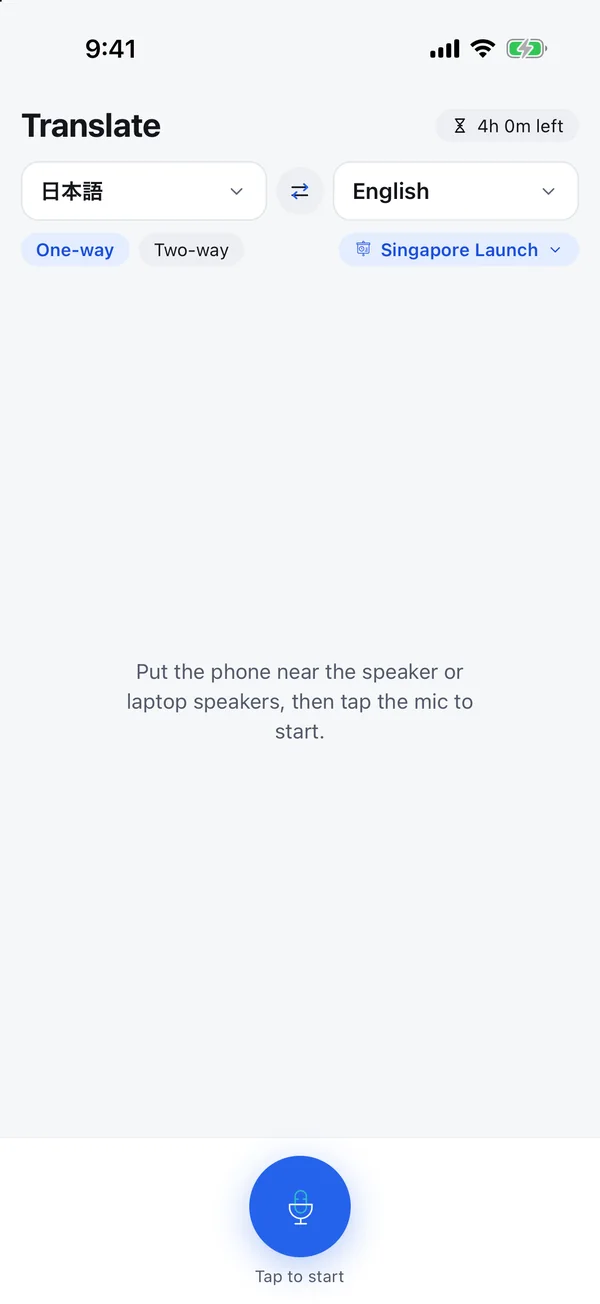
Pick your language and your partner's, then choose a mode.
• Two-way: translates both sides. Use it when both sides speak.
• One-way: use it when mainly one person talks, for example when you listen to a presentation. The app detects the spoken language automatically.
If the meeting has an agenda or a clear goal, also enter the project name and a few lines of context, so the translation fits better.
Tip: set up before everyone sits down, and the first sentence already has subtitles.
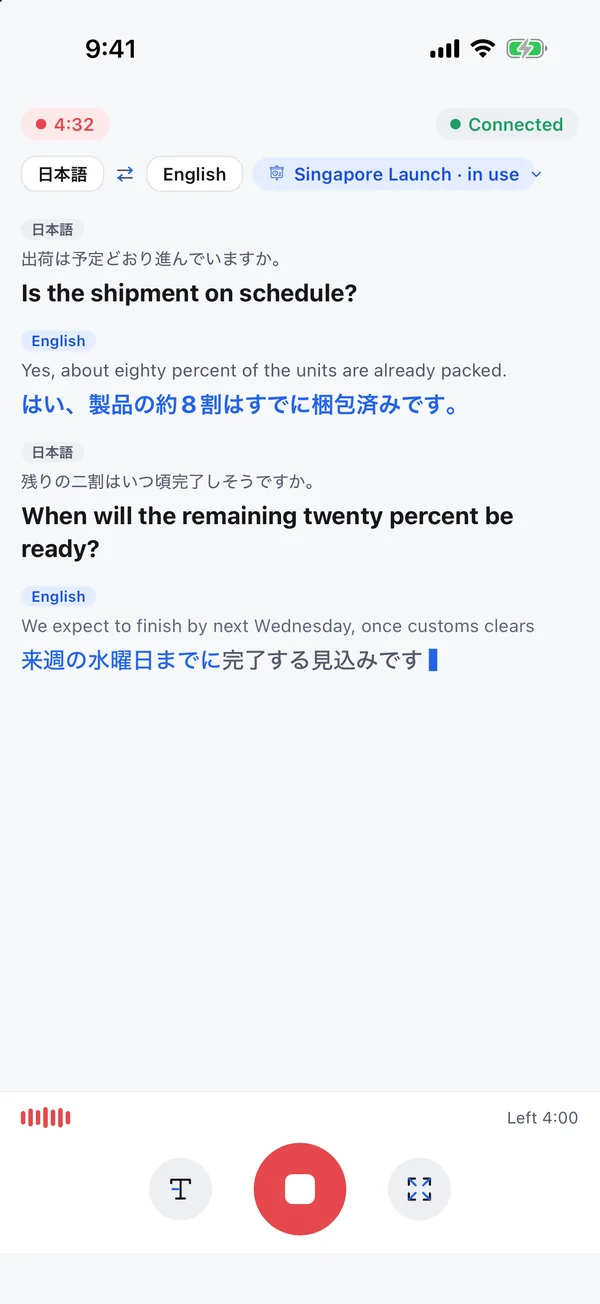
Place the phone where both sides can be heard. When someone speaks, each sentence appears with its translation underneath, as in the screenshot.
Tip: keep the mic away from your pocket and your laptop fan. In a noisy room, or where unrelated people are talking nearby, subtitles and translations will be less accurate.
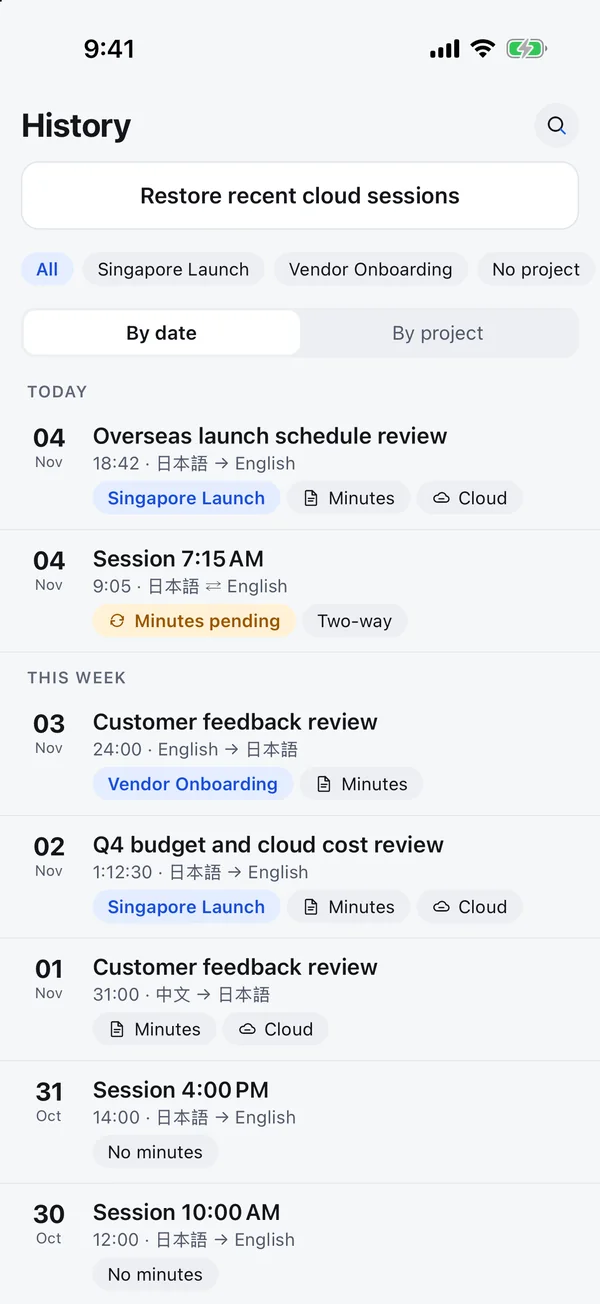
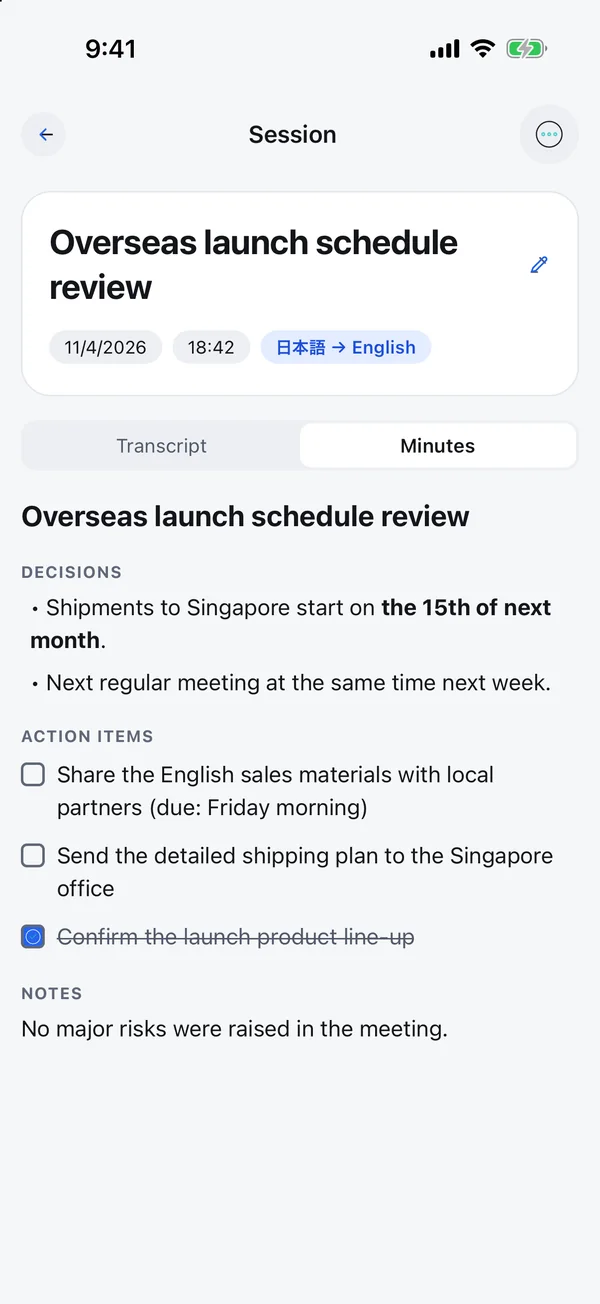
Stop ends the meeting. AI writes minutes with the decisions and an action checklist, and attaches the bilingual transcript. Open History to copy or share.
Tip: you can leave the screen. Finished minutes stay in the list.
Features
Each sentence appears with its translation underneath. Both sides speak their own language, with no one in the middle passing messages.
Two-way mode translates both sides. One-way mode detects the language being spoken.
Tap Stop, and AI organizes the meeting into a summary, decisions, action items and a checklist.
Enter your industry, roles, project name and the terms you use. Translations fit your work better.
Search by title, minutes or transcript, then copy or share.
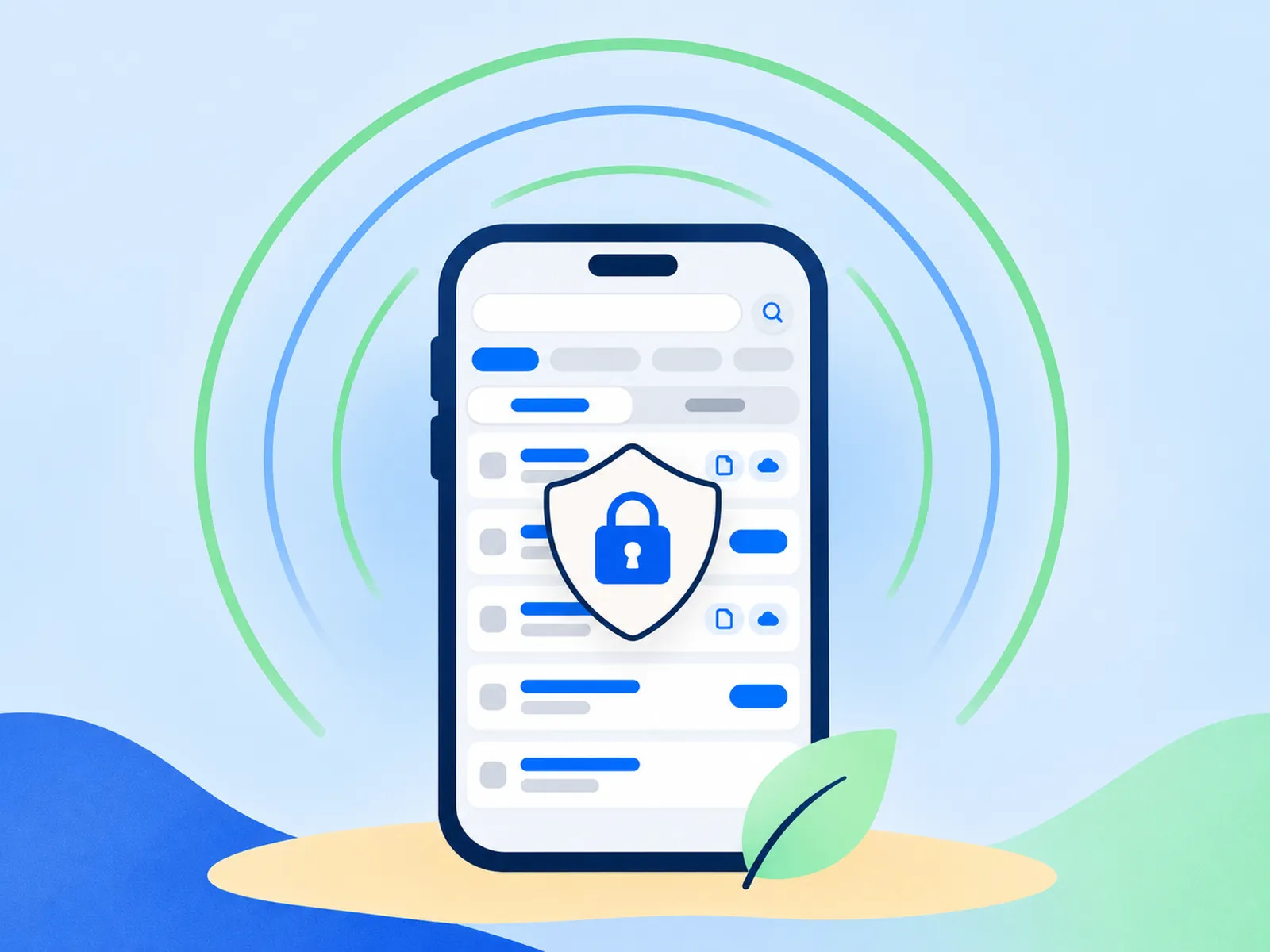
Meetings are saved on your phone. Cloud backup is off by default; turn it on in Settings, or save a single meeting to the cloud.
Languages
Meeting minutes
Tap Stop, and AI condenses the meeting into short minutes, so the team can see what was decided and what happens next. The full transcript is saved first, so your content is still there if the minutes fail to generate.
Better translation
The same word can mean different things in different work. A "drawing" is a technical blueprint in a factory and a picture in a classroom. Before the meeting, enter your industry, each person's role, the project name and the goal of the meeting. TalkBridge sends that context along with the last few sentences, so the translation follows your work.
TalkBridge is machine translation. Always check numbers, names and key decisions.
Good for:
Team glossary
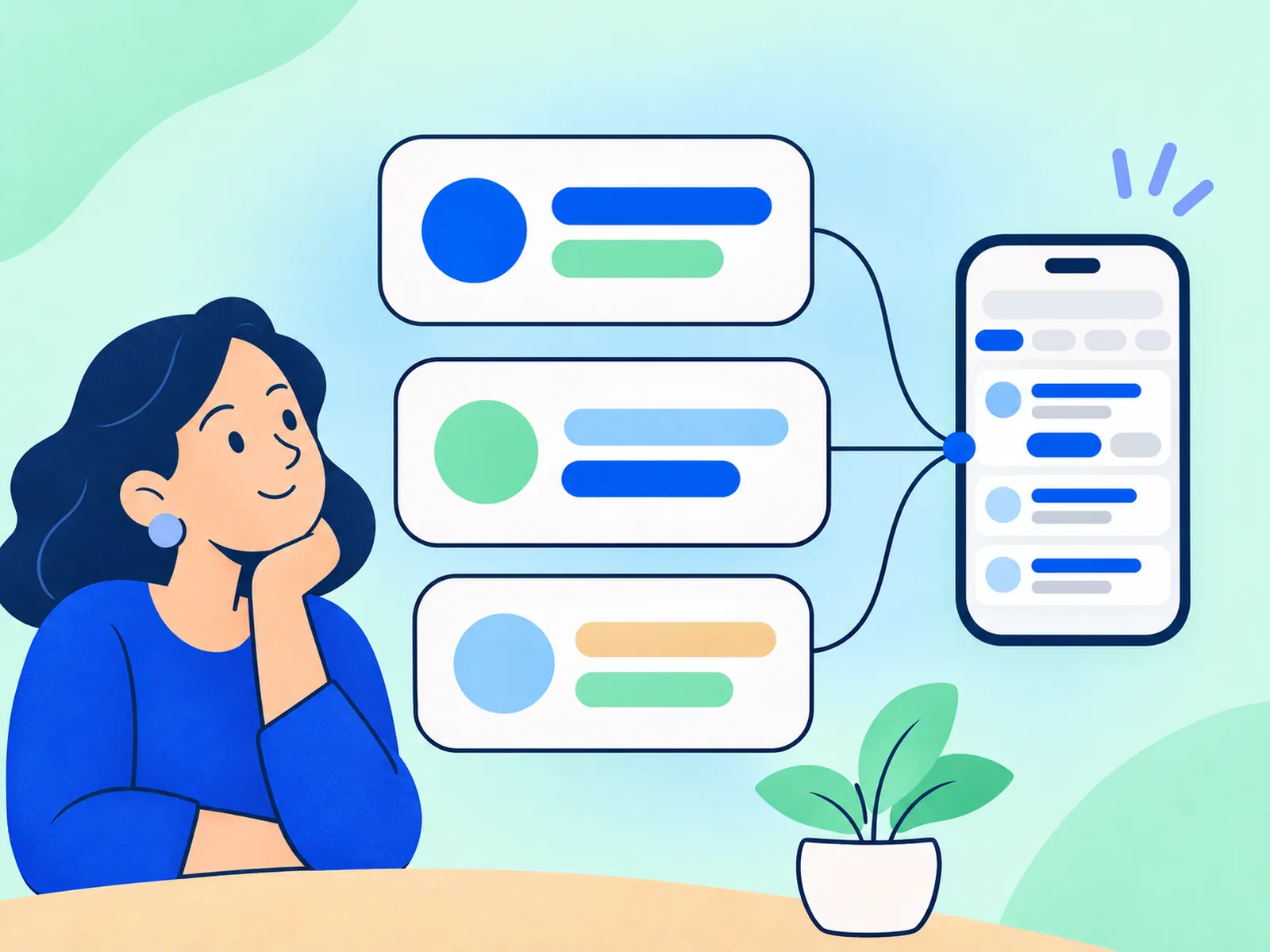
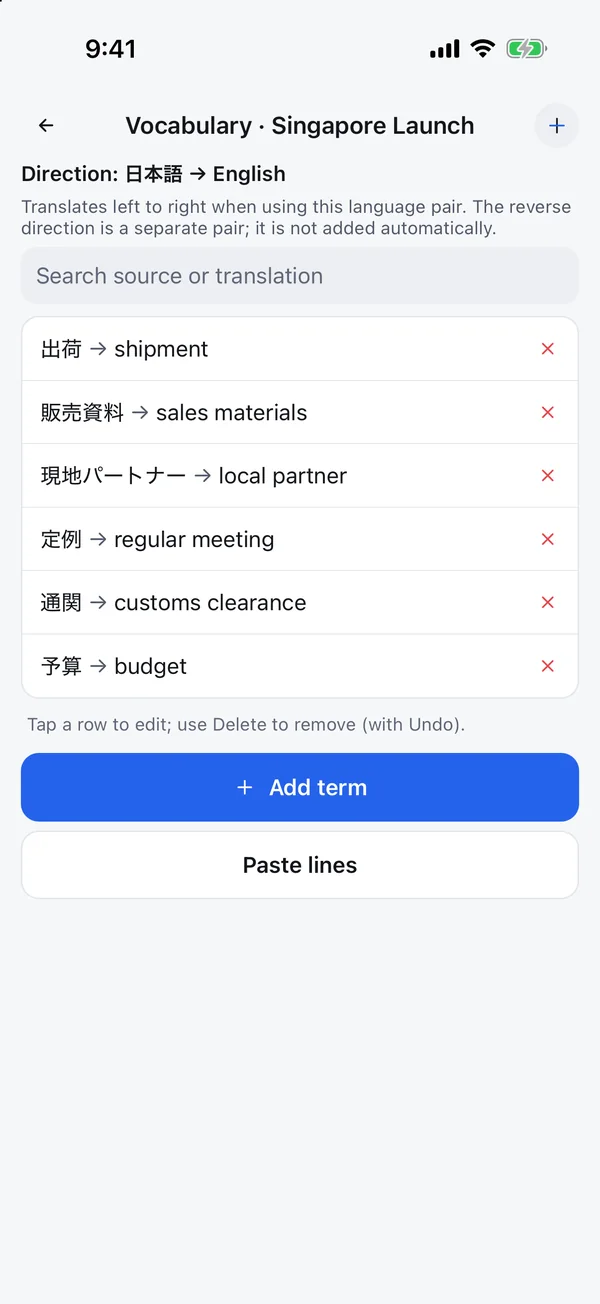
Add the names your team uses, as pairs of original term and translation, for each project. TalkBridge loads the list when a meeting starts, so the translation prefers those terms.
When to use it
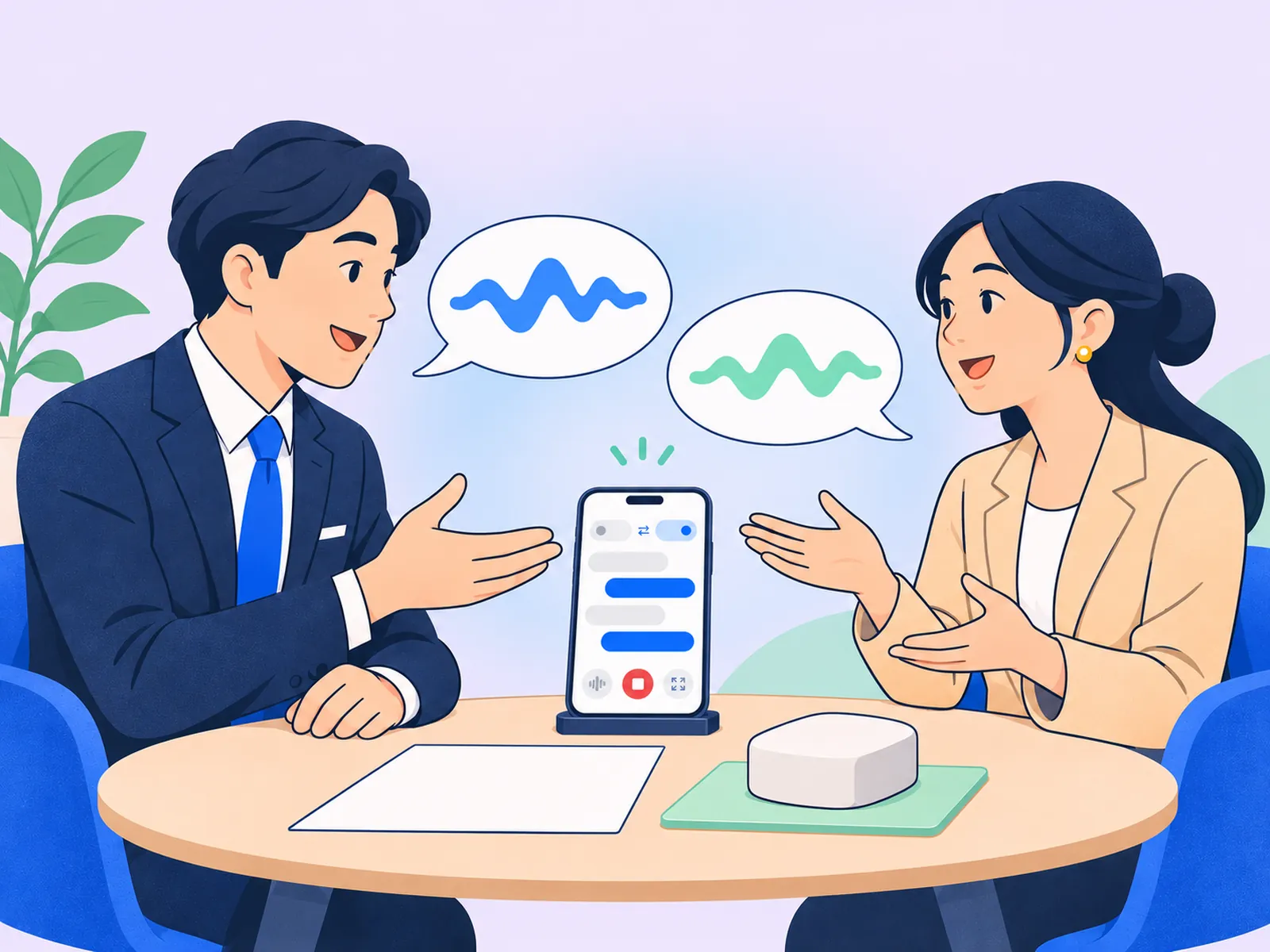
Regular meetings and discussions with partners, suppliers and overseas offices.

Showrooms, factory tours, trade shows and on-site meetings.

Staff training, safety briefings and product introductions. When only one person speaks, one-way mode fits best.
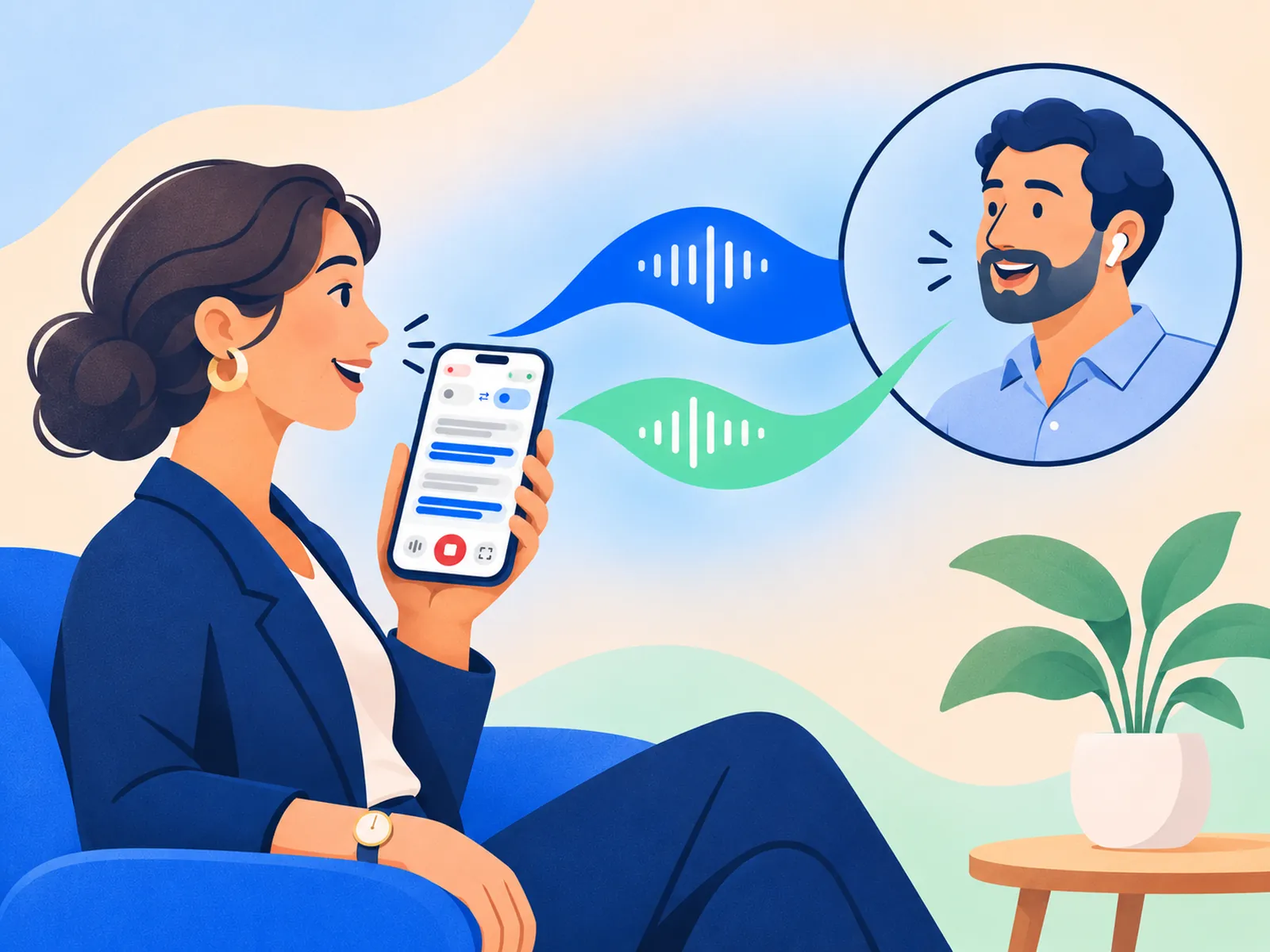
In online meetings, place the phone near your computer's speaker.




Your data
Your meetings are saved on your phone. Cloud backup is optional and off by default; if you turn it on, they are also stored in the cloud (Tokyo).
Speech recognition and translation run on a server, so you need an internet connection during the meeting.
The transcript and minutes stay on your phone until you delete them. Saved meetings open offline.
Off by default. If you turn it on, it is saved to your account. Your projects and glossary always sync to your account.
Go to Account, then Delete account. Your account, projects, files and cloud meetings are deleted.
We do not sell your meeting content.
FAQ
60 languages, including Japanese, English, Chinese, Korean and Vietnamese. Pair any two. In two-way mode, you choose both languages. In one-way mode, the app detects the language being spoken.
Yes. The app listens through your phone's mic, so place the phone near your computer's speaker.
Yes, while translating, because speech recognition and translation run on a server. Saved meetings open offline.
On your phone. Cloud backup of the transcript and minutes is off by default; if you turn it on, they are also saved on a server in Tokyo. Your projects and glossary always sync to your account.
The context you enter (industry, roles, project, terms) helps the translation fit your work. The environment matters too: in a noisy room, or with unrelated people talking near the mic, subtitles and translations will be less accurate. It is machine translation, so always check numbers, names and key decisions.
Yes. Sign in with Google, Apple or email.
In the app, go to Account, then Delete account. Your account, projects, files and cloud meetings are deleted.
Sign in with Google, Apple or email.